Subjects & Keywords
Subject codes and keywords tell retailers, libraries and readers what your book is about. You add them on the Description tab of a title, alongside the blurb and taglines. This guide covers the Genres section, BISAC and Thema codes, Thema Qualifiers, Regional and Merchandising Themes, and keywords. It also shows how to tidy up your keyword list in Settings.
Where subjects and keywords live
All of these controls sit on the Description tab of a title. Open a title, then click the Description tab.
You must save the title before you can add keywords or subject codes. Until the title is saved, each section shows a message telling you to save first instead of the picker — for example, “Save the title first to add keywords.” Each section’s message names that section. Save once, and the pickers appear.
Genres is the first section on the tab. Keywords and the subject codes are the last four sections, at the bottom of a long page, in this order:
- Keywords
- BISAC Subject Categories
- Thema Subject Categories
- Thema Qualifiers
Nine other sections sit between them, including the descriptions, the taglines and Target Audience. Scroll to the bottom, or use the browser’s find, rather than looking near the top.
Regional and Merchandising Themes sit inside the BISAC Subject Categories section, described below.
Add genres first
Genres is at the top of the Description tab, above the description sections. Pick a genre from the Genre dropdown — start typing to filter it — then click Add. If you type a genre Pubblish does not offer, you can add it to your workspace.
A book can have as many genres as apply. Add every one that fits. There is no limit. The genres you add appear in a list below the dropdown, in the order you added them. The top row is the main genre and carries a Main badge. Use the up and down arrows to change which row is on top. REMOVE takes one out.
Add at least one genre before you write anything else on this tab. Until the list has one, three sections below are dimmed and their fields disabled: Descriptions, Short Descriptions and Taglines. Pubblish also uses the genres to generate AI-assisted descriptions.
Genres are separate from BISAC and Thema subject codes. They are broad labels for the book, such as Literary Fiction or Mystery. The subject codes below them are the detailed classifications that retailers use.
Add keywords
Keywords are short search terms readers might type to find your book. Add them in the Keywords section.
- Type a keyword in the Type keyword and press Enter field. Each keyword can be up to 50 characters.
- Press Enter, or click Add.
- To add several at once, paste a comma-separated list into the field.
As you type, Pubblish suggests keywords you have already used on other titles. Click a suggestion to add it. Reusing the same keywords keeps your catalog consistent.
Click Suggest with AI to generate keyword ideas from the book’s description. The suggestions appear as chips. Click a chip to add that keyword, or click Add all to add every suggestion. AI suggestions may use your workspace’s AI credits.
Most retailers use only the first 7 keywords, though some accept more. Put your strongest keywords first.
To paste your keywords into a retailer’s own form, use the two buttons under the list: Copy first 7 copies the ones most retailers will read, and Copy all copies the lot.
Add BISAC subject categories
BISAC codes are the standard subject classification used by retailers and libraries in North America. Add up to 5 in the BISAC Subject Categories section. There are two ways to find a code.
Search by code or keyword. Type a BISAC code or a phrase into the Search by code or keyword field, such as FIC022000 or “cozy mystery”. Pick a result to select it.
Browse by category. Work down three dropdowns:
- Browse by category — the main subject area.
- The category type — becomes available once you pick a main category.
- The specific category — becomes available once you pick a category type.
Then click Add to add the selected code. Click Clear to reset the dropdowns and start again.
Selected codes appear in a list below the pickers. Use the up and down arrows to reorder them. Click REMOVE to take one out. Order matters — put the most relevant category first. You can shortlist more than 5 while you decide. Only the first 5 are saved. A note tells you which ones will be dropped.
Add Thema subject categories
Thema is the global subject standard used by international retailers and distributors. Add up to 4 in the Thema Subject Categories section.
There are two ways to find a code, the same two as BISAC.
Search by code or keyword. Type a Thema code or a phrase into the Search by code or keyword field, such as FBA or “graphic novel”. Pick a result to select it.
Browse by category. Thema categories are organized in levels, from broad to specific. Open each level under Browse by category until you reach the category you want, then click Add. Back steps up one level.
As with BISAC, selected codes show in a list where you can reorder and remove them. Only the first 4 are saved.
Use Thema when you sell outside North America. You can use Thema together with BISAC. Thema does not replace it.
Add Thema qualifiers
Thema qualifiers are optional refinements that add precision to your Thema codes. They cover things like place, language and time period. Add them in the Thema Qualifiers section.
Qualifiers are not required. Add them only when they make a category more specific. There is no fixed limit on the number of qualifiers.
Regional and Merchandising Themes
Regional and Merchandising Themes are BISAC’s extra classifications. They are inside the BISAC Subject Categories section, below the selected-code list, in an accordion labeled Regional and Merchandising Themes. The accordion is open by default.
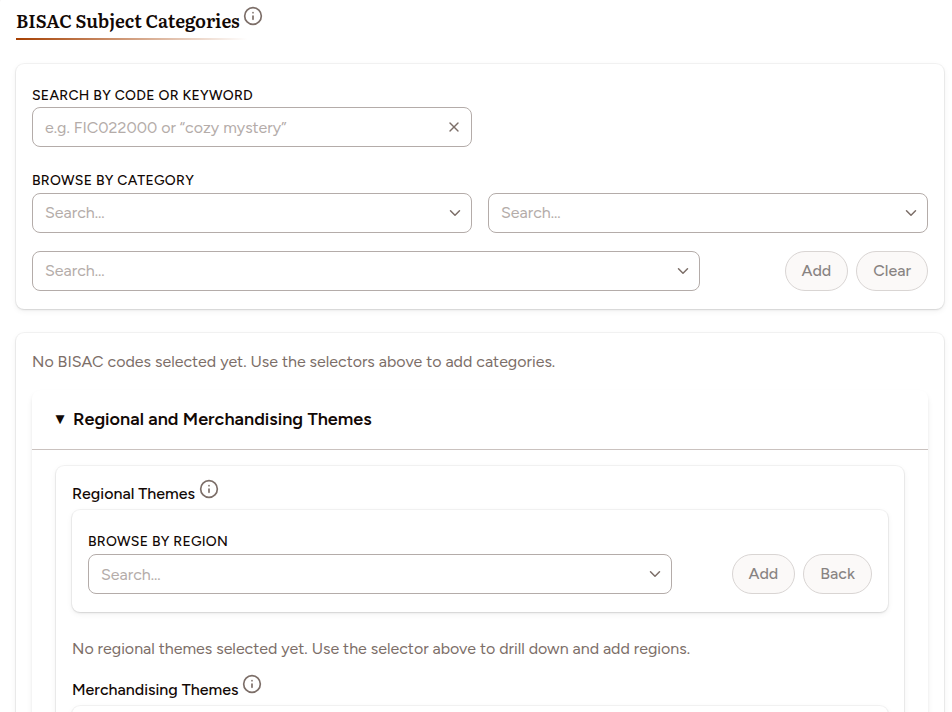
Regional Themes mark the geographic markets where the title is most relevant, such as North America, the United Kingdom or Australia. They help retailers group titles for regional collections.
Merchandising Themes mark seasonal, cultural or topic-based themes, such as a holiday theme or a cultural-heritage connection. They help retailers build seasonal displays and promotions.
Both are optional. Add a code to each using the picker inside the accordion. The info icon beside each heading explains what the field is for.
Tidy up keywords in Settings
Over time you may build up duplicate or misspelt keywords across your titles. Fix them in one place. Open Settings, then the Tags tab.
The Title Keywords section lists every keyword in your catalog.
- Type in Search keywords… to filter the list.
- Select two or more keywords with their checkboxes, then click Merge. A dialog opens where you choose which keyword to keep. The others merge into it, and every title using them updates automatically.
- Delete a keyword you no longer want.
The same tab has an Asset Tags section that works the same way for the tags on your assets.