Importing Your Catalog
The import tool brings an existing spreadsheet into Pubblish in one pass. It reads your columns as they are, so you do not have to rearrange them first. One row becomes one edition. That row can also include the title’s contributors, series and copyright.
Where to start an import
There are two places to begin.
- On the Titles page, the Import button sits at the top, next to Quick Add and Full Form.
- On the Tools page, open the Import card.
Both open the same upload page.
What a row can include
One row is one edition. A new book needs a title, an ISBN and a format. To update a book you already have, the ISBN alone is enough to match it.
A single row can also include the people and details that belong with that edition.
| A row can include | What goes there |
|---|---|
| Edition | Format, pages, price, publication date |
| Contributors | Up to 8 per row, each a pen name and a role |
| Series | Series name and sequence number (up to 3 per row) |
| Copyright | Year and holder (up to 3 per row) |
Write dates as YYYY-MM-DD. The tool will not guess whether 03/04/2019 is March or April.
Start from a blank template
If you don’t have a spreadsheet, use ours. At the bottom of the upload page, under Starting from nothing?, click Download a blank template. The file is an Excel workbook with two sheets. The Import sheet has every column set up. The Instructions sheet has notes on what goes where.
You do not need the template if you already have a spreadsheet. The tool reads your own columns and wording.
Check your file
On the upload page, choose your file, then click Check my file. The tool accepts an Excel file (.xlsx) or a CSV file (.csv). It identifies common column names, any column order, and your wording. For example, it reads Paperback, Hardback and Kindle as the right format codes, and turns ISBN-10s into ISBN-13s.
Nothing is imported at this step. The tool takes you to a preview first.
Read the preview
The preview opens with Understood n of m columns at the top. It splits your columns into lists.
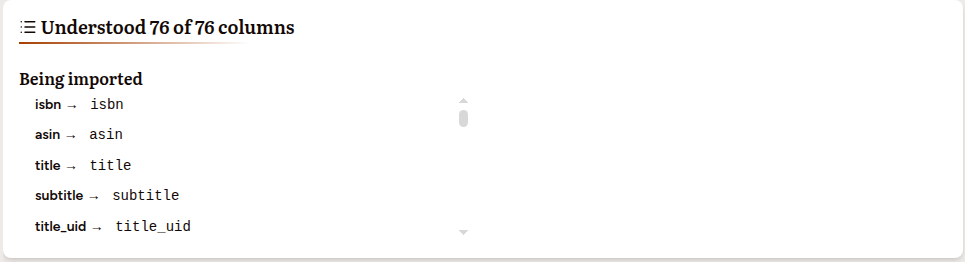
- Being imported shows each column the tool recognized and the field it maps to.
- We think we know these appears only if you have imported before and mapped one of these columns by hand on an earlier import. It shows what the tool remembers, but nothing in it is imported yet — open Tell us what a column is below, check the mapping, and click Apply and check again to import it.
- Not being imported lists any column the tool could not place. Nothing in those columns is imported.
A column placed in Not being imported is often correct. A sales report has many columns a catalog does not need.
Below the columns, the Data Summary counts what the file holds: Titles, Editions, Contributors, Series and Copyrights. A validation banner then tells you whether the file is ready. It reads Validation Passed when every row is clean.
Tell the tool what a column is
If a column you care about is in Not being imported, open the Tell us what a column is panel. Pick the field each column should map to, then click Apply and check again. The tool reads the file again with your answer and returns you to the preview with the counts updated.
Every column defaults to not being imported, so nothing is guessed. You choose to map a column. Nothing is mapped on its own.
Import your rows
When the file is ready, the preview shows a Checking against your catalog section. It lists which rows will create new entries and which will update existing ones. Where relevant, an Import Options section appears with checkboxes:
- Update the existing editions shows when some ISBNs already exist. Leave it unchecked to keep those editions unchanged.
- Create new contributors shows when the file names people not yet in your catalog.
- Create new series shows when the file names series not yet in your catalog.
Choose your options, then click Import Now.
When some rows have errors
If some rows have errors but others are clean, the preview says n of m rows can be imported. The rows with errors are skipped. You can import the valid rows now by clicking Import n Valid Rows. Or fix the errors in your spreadsheet and upload it again with Upload Different File. If every row has an error, nothing can be imported until you correct the file.
After the import
The results page opens with Import Complete and an Import Summary. The summary counts what was created and updated across Titles, Editions, Contributors, Series and Copyrights. Any errors or notes are listed below it.
On the results page, click View Titles to see your catalog. Or click Import Another File to import a second spreadsheet.
The importer and the export tool work together. You can export your catalog, edit it in a spreadsheet, and re-import it for bulk changes. See Exporting & Retailer Sheets.