Series
A series groups related titles. It records each book’s place in the set. Use one for a numbered sequence, for standalone books that share a setting, or for a group of non-fiction titles under one brand. A series can sit inside another series.
Creating a series
- Choose Series in the main navigation, under Books.
- Click Add New Series.
- In Basic Information, enter the Series name. The Series ID is optional. Use it if your distributor or your own records give the series a code. Subtitle and description are optional too.
- In Details, pick the Type. For a subseries, also pick the Parent series. Three fields describe the series: Titles are numbered, Series is complete, and Series is active.
- Add internal Notes if you want them.
- Click Create Series.
| Type | Meaning |
|---|---|
| Sequential | Books are read in order. |
| Connected Standalones | Books share a setting or characters and can be read in any order. |
| Anthology / Themed | Collected or themed volumes, such as anthologies. |
| Non-fiction / Branded | Non-fiction titles published as one branded set. |
| Other | Anything that doesn’t fit the types above. |
Adding a title to a series
You add a title to a series from the title’s edit page:
- Open the title’s edit page. On the Title tab, find the Series section.
- Pick a series from the dropdown. Start typing to search. If the series doesn’t exist yet, keep typing its name and choose the Create new option that appears.
- Enter the Number in series: 1, 2, 3 — or a decimal such as 1.5 for a novella between books.
- To place the title in a second series, click Add to Another Series. The Order arrows set which series is listed first for this title.
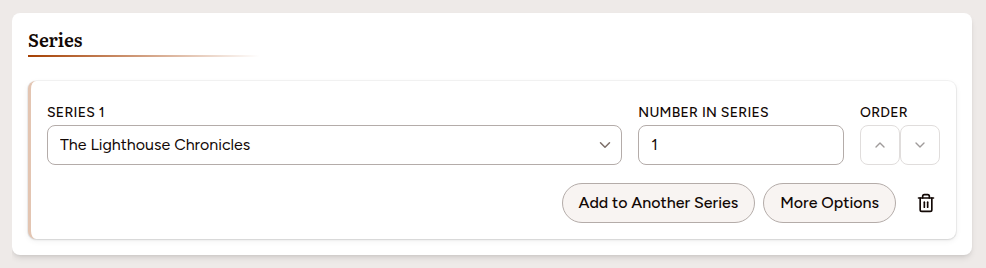
Each field saves as you change it.
Reading order and display
Click More Options on a series row to reach four extra fields:
- Display Text — how the position is shown in listings, such as “Book 1” or “Volume I”. Leave it blank on a numbered title and Pubblish fills in “Book” and the number when the row saves.
- Story Order — the chronological order, when it differs from publication order. A prequel published as Book 3 might have story order 1.
- Story Order Display — text for that position, such as “Chronologically First”. If blank, the story order number is shown instead.
- Inclusion Note — a short note such as “Prequel” or “Standalone”.
These four fields do not save as you type. Click Save Changes before you leave the panel. Close and Cancel throw away whatever you typed, and neither asks first.
Viewing a series
Choose Series in the main navigation and click a series name. The page shows the series’ details, a Titles in Series table in sequence order, and any Subseries. Click Edit to change the series. On the edit page every field saves as you change it. Delete removes the series and its title links. The titles themselves are not deleted. Only administrators and the owner can delete a series; editors can create and edit one but see no Delete button.