Editions
An edition is one published format of a title. A single title, such as one novel, can have a paperback edition, a hardback edition, an ebook edition, and an audiobook edition. Each edition has its own identifier, its own price, and its own format details. You manage all of a title’s editions on the Editions tab inside the title editor.
Editions vs titles
A title is the work. An edition is a specific way that work is published and sold.
You create the title once. You then add one edition for each format you publish. The cover, contributors, and description are stored on the title. The identifier, format details, price, and imprint are stored on each edition.
Opening the Editions tab
- Open a title from the Titles list.
- Click the Editions tab.
On a title you have not saved yet, the tab opens but reads “Save the title first to add editions.” Save the title, and the Quick Add row and the table appear.
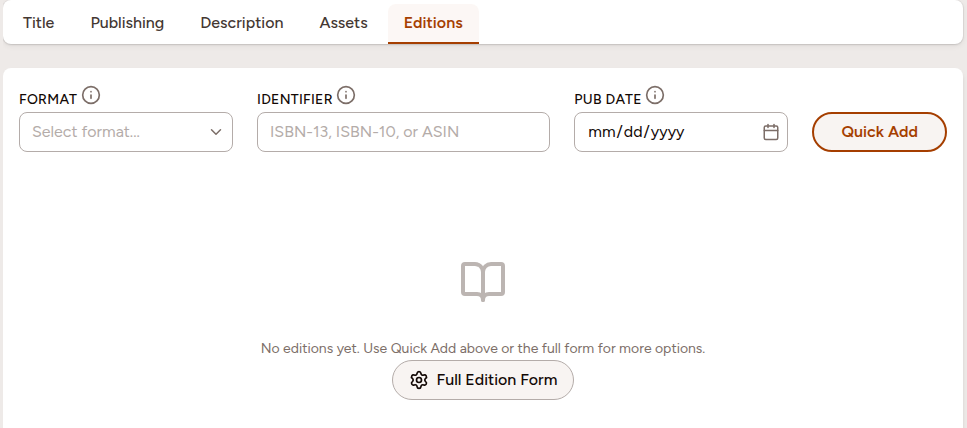
Quick Add: create an edition from three fields
At the top of the Editions tab is a Quick Add row. Use it to create an edition from three fields:
| Field | What to enter |
|---|---|
| Format | The format, such as Paperback, Hardcover, or Ebook. |
| Identifier | An ISBN-13, an ISBN-10, or an ASIN. |
| Pub Date | The publication date. Optional. |
Fill in the fields and click Quick Add. The edition appears in the table below. You can add the rest of its details later.
Format and Identifier are both required here. Only Pub Date is optional. The Identifier field accepts an ISBN-13, an ISBN-10, or an ASIN, and is checked as you leave the field. To create an edition with no identifier yet, use the Full Edition Form instead.
The Full Edition Form
The Full Edition Form opens a side panel with every field an edition can hold. Use it when you need more than format, identifier, and date.
- To add a new edition, click Full Edition Form — below the table, or in the empty state before the first edition exists.
- To open an existing edition, click the pencil Edit icon in the Actions column of its row.
The side panel header reads Add Edition for a new edition and Edit Edition for an existing one.
Essentials
The top of the side panel holds the fields every edition needs:
- Format and Format detail (for example, EPUB or Kindle).
- ISBN-13 and ASIN.
- Publishing status and Publication date.
- Imprint — the imprint this edition is published under.
An ISBN is not required. You can save an edition without one.
Edition details and print details
Below the essentials, the Edition Details section holds optional fields such as page count, word count, audiobook running time, edition number, and distribution channel.
The Print Details section holds fields that apply to physical books: format features, trim size, dimensions, and the limited-edition options.
Signed, Numbered and Print Run stay dimmed until you tick Limited Edition on a physical format. Tick it first, and the three become editable.
Adding prices
Prices, identifiers, languages, and contributors only appear once the edition is saved. A new edition shows the note “Save this edition to add prices, identifiers, languages, and contributors.” Save the edition first, then reopen it to add these.
In the Pricing section, click Add to create a price row. Each row has:
- Currency — the currency for this price.
- Territory — the country or region this price applies in. Leave it on Everywhere for your standard price.
- Price — the amount.
- Tax included — turn this on when sales tax or VAT is already in the amount.
- Primary — the price used wherever only one price fits, such as cards, exports, and ONIX.
In each currency you can set one Everywhere price, plus one price for each territory. So USD can hold a general price and a separate Canadian one, but not two general USD prices.
The first price you add becomes the Primary price automatically. Only one price can be primary. Turning Primary on for a different price turns it off for the others.
Additional identifiers
Each edition can carry identifiers beyond its ISBN and ASIN, such as a DOI, UPC, EAN, or a proprietary code. In the Additional Identifiers section, click Add to create a row. Choose the identifier type and enter its value.
Per-edition languages and roles
Each edition records its own languages in the Additional Languages section. Click Add to create a language row. Choose a Language, then choose a Role:
- Language of text — the language the edition is written in.
- Original language — the language the work was first written in.
- Language of summary — the language of a marketing summary or abstract.
Use this for translations, bilingual editions, and editions with multilingual content. The Role field stays disabled until you choose a language.
Edition-specific contributors
Some contributors apply to one format only, not the whole title — a narrator for the audiobook, a translator for a translated edition, a cover artist for a particular print run. In the Edition-Specific Contributors section, click Add to create a row. Choose the contributor and their role for this edition.
Per-edition imprint
The imprint is set on each edition, not on the title. Choose it in the Imprint field in the Essentials section of the side panel. This lets you publish different formats of one title under different imprints. Set up imprints on the Publishers page.
The Actions column
Each row in the editions table has an Actions column with these controls:
- Edit (pencil) — opens the edition in the side panel.
- Duplicate (copy) — creates a copy of the edition.
- Delete (trash) — removes the edition. This cannot be undone. Administrators and the owner only.
- Barcode — opens the barcode dialog. This icon appears only when the edition has an ISBN. See Barcodes.
- Amazon KDP entry sheet (store) — opens a sheet of fields to copy into Amazon KDP.
- Export ONIX — opens an ONIX export for the edition. This icon appears only for workspaces with the ONIX add-on.
The Editions list page
The sidebar has an Editions item under Books. It opens a list of every edition across all your titles.
Use it to search by title, author, or identifier, to filter by edition type or status, and to switch between card and table views. You cannot create an edition here. Editions are always created inside a title.
Two controls lead to two different places. The book title and the View button on a card both open the title’s own page at that edition. The pencil Edit icon in the table, or the Edit button on a card, opens the edition in the side panel.
Related Topics
- Titles — create and manage the titles that hold your editions.
- Barcodes — generate a barcode from an edition’s ISBN.
- Publishers — set up the imprints you assign to editions.
- Metadata reference — the fields that describe your books.